
Teammates
You can add your team members at FeelBack, organize your teammates in teams, so you can share insights and assign contact followup and more in your accounts. You can read this articule to find out how to do it.
You may select Members for inviting new and editing existing users in your account and Teams for organizing your members in groups for notifications or rules.
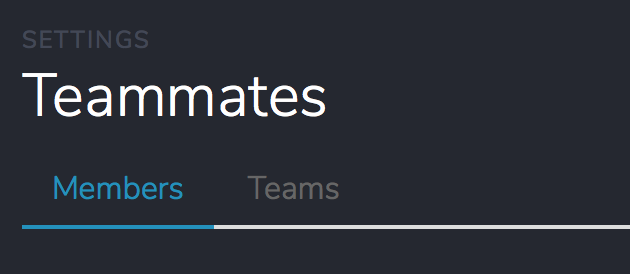
Members
To invite new teammates you can go to your settings menu and press Teammates:
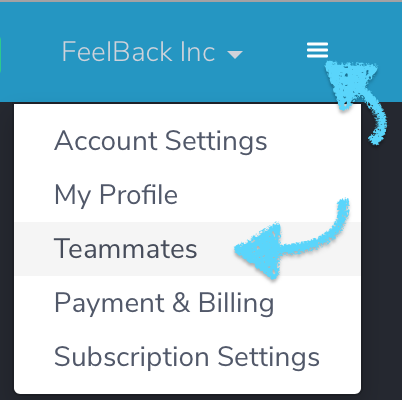
Once at your teammate section you may see all your teammates associated to the account. You may invite new ones, change their settings and remove them from your team.
Invite a new teammate
To add a new teammate you just need to press the Invite button and fill up your teammate email address.

Please add your teammate email address and set the privileges to control access in your account.
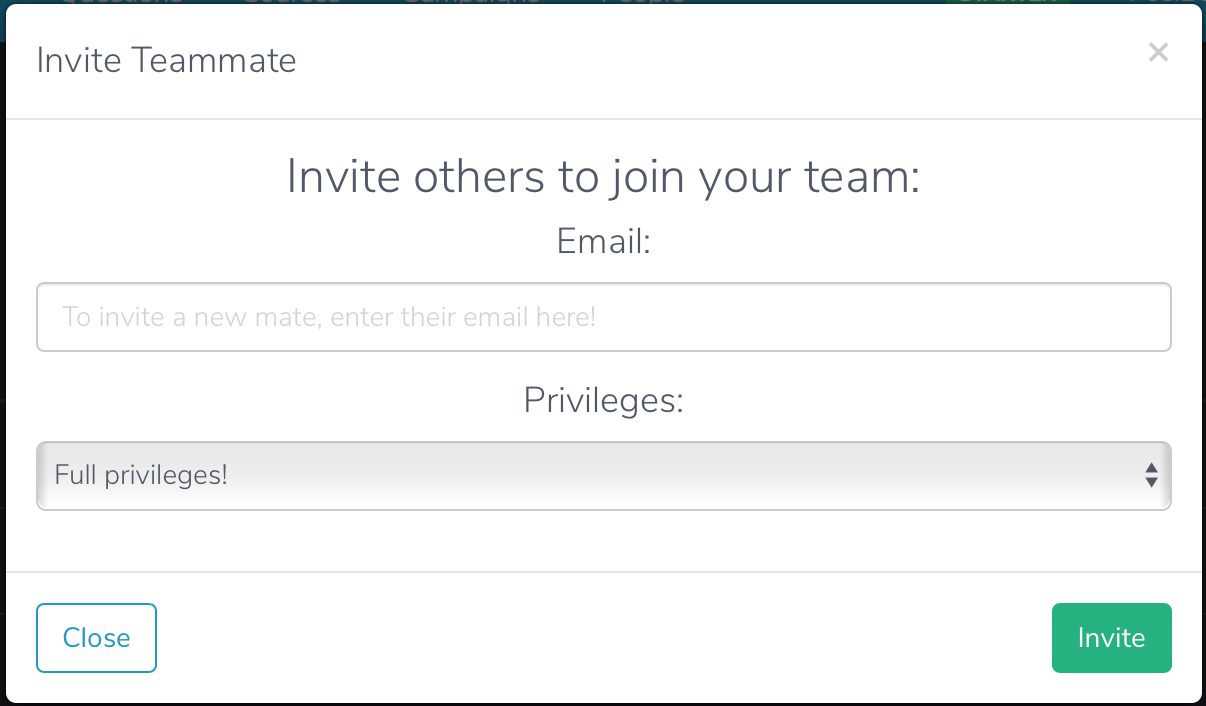
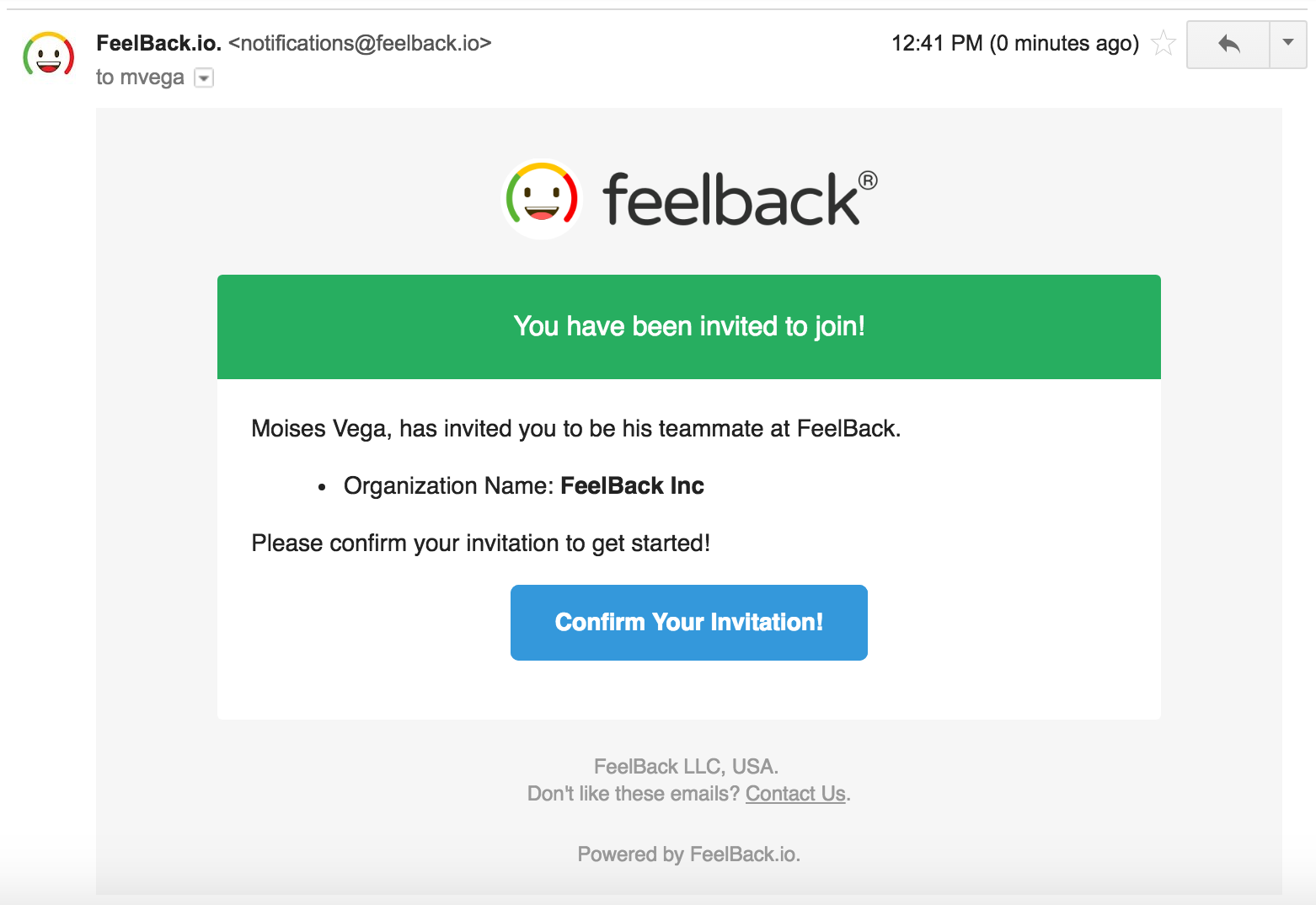
Once you press "Invite" a invitation email will be sent to your teammate. Your teammate must just confirm the invitation and he will be able to sign in.
Teammate actions
Once you have invited your teammate you may do some actions on them, the actions are seen in the Teammate section, for example:
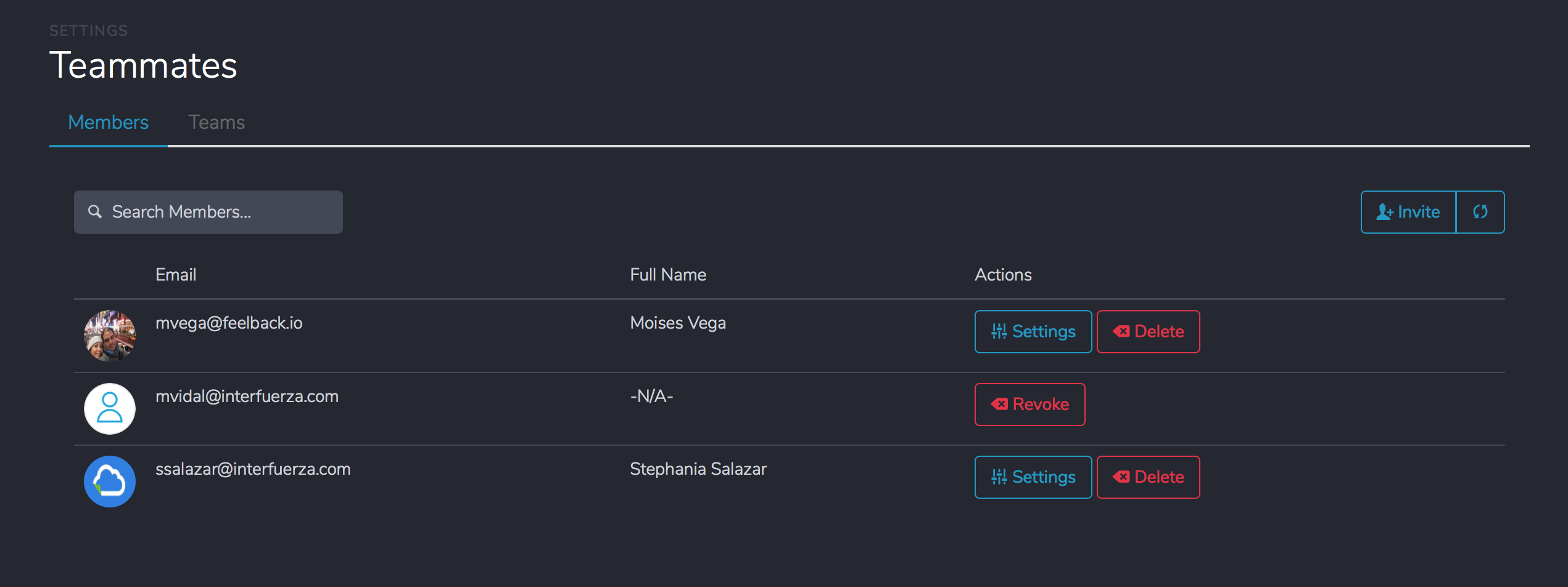
Where you may:
Revoke - cancel a invitation.
Settings - change user name or privileges.
Delete - will unlink or remove the user from accessing your account.
Teams
Teams are group of users that can be used for notifications and other features in Feelback.io, you may create unlimited number of teams configurations and you can connect all your users in them.
To create a team just click on the Teams tab in Teammate section and press the Add Team button.
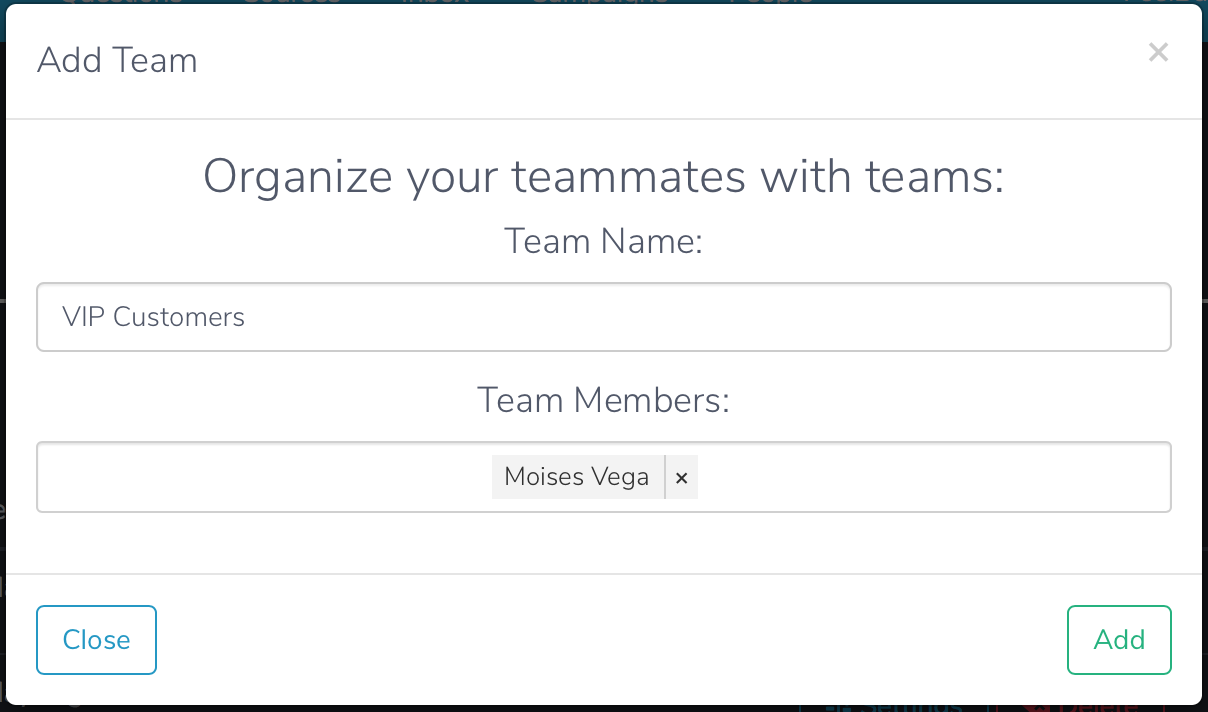
You may select multiple team members. Once you finish you may press the Add button.
Updated about 1 year ago